There is a tiny file sitting at the root of almost every website on the internet. Most site owners have never opened it. A good chunk have no idea it exists. And yet, a single wrong line inside it can quietly make your entire website disappear from Google — sometimes for weeks before anyone notices.
That file is called robots.txt.
It's not complicated. It's not scary. But it's one of those things where not understanding it is a genuine risk, not just a knowledge gap. Because when robots.txt goes wrong, it goes very wrong very quietly — and by the time traffic numbers show the damage, the problem has usually been sitting there for a while.
So let's go through it properly. What it is, what it actually does (and doesn't do), how it affects your rankings, and the mistakes that have knocked real sites out of search results.
What Is robots.txt?
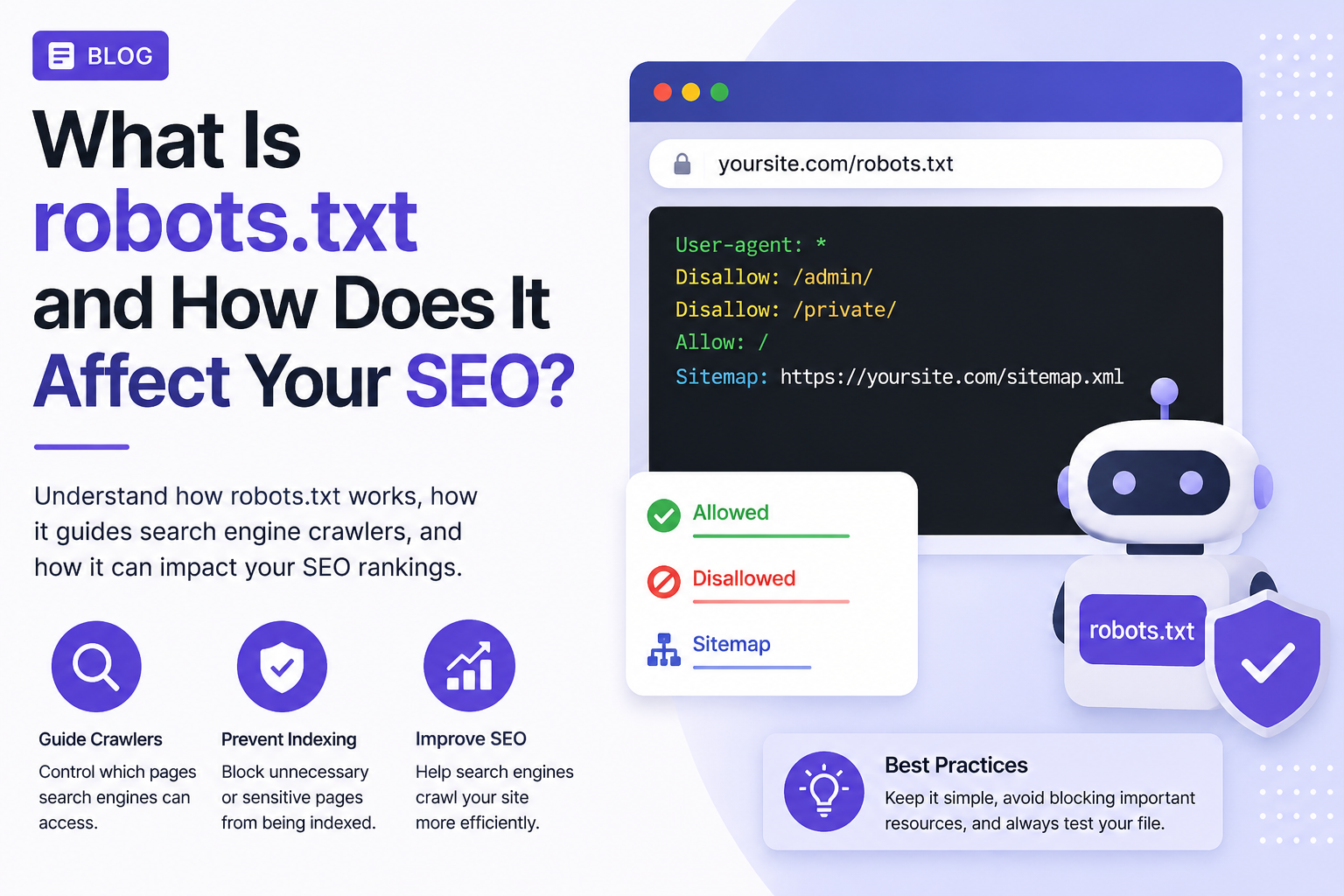
robots.txt is a plain text file that lives at the root of your website — meaning it's accessible at yourdomain.com/robots.txt. You can go check your own site right now by typing your domain followed by /robots.txt in your browser bar. If something shows up, you have one. If you get a 404 page, you don't — which is fine, it just means crawlers will treat everything on your site as accessible by default.
The file contains instructions for web crawlers — also called bots or spiders. These are automated programs that visit websites, read the content, and report back to wherever they came from. Googlebot is Google's crawler. Bingbot is Bing's. Perplexitybot belongs to Perplexity AI. There are dozens of them crawling the web at any given moment, and robots.txt is how you talk to them.
The instructions are simple. You tell a crawler which parts of your site it's allowed to visit, and which parts it should stay out of. That's the whole thing.
Key Insight: robots.txt is not a security tool. It's a polite set of instructions. Reputable crawlers like Googlebot follow it. Badly behaved scrapers and spam bots often don't. If you have genuinely sensitive content that must not be accessed, robots.txt alone won't protect it — you need authentication or actual access controls.
What Does It Actually Look Like?
The syntax is straightforward. Here's the most basic robots.txt file that any site could have:
User-agent: *
Disallow:
User-agent: * means "these instructions apply to all crawlers." The asterisk is a wildcard.
Disallow: with nothing after it means "there's nothing to block — crawl everything." This is actually an explicit way of saying "you're welcome everywhere."
Now here's a more typical version you'd see on a real site:
User-agent: *
Disallow: /wp-admin/
Disallow: /checkout/
Disallow: /account/
Disallow: /?s=

Sitemap: https://yourdomain.com/sitemap.xml
This one tells all crawlers: don't visit the WordPress admin area, the checkout page, user account pages, or search result pages (the ?s= is WordPress's internal search parameter). Then it points crawlers to the sitemap so they can find everything else efficiently.
That's robots.txt in practice. A few lines of text, each doing a specific job.
How Does robots.txt Actually Affect SEO?
Here's where it gets important — and where the most common misunderstandings live.
It Controls Crawling, Not Indexing
This is the single most misunderstood thing about robots.txt, and it trips up even experienced site owners.
Blocking a page in robots.txt tells Google not to crawl that page. It does not tell Google not to index it. Those are two different things.
If another website has ever linked to one of your blocked pages, Google knows that URL exists. It may still show that URL in search results — just without any description or snippet, because it was never allowed to read the page. You'll see this in Google Search Console labeled as "Indexed, though blocked by robots.txt." It's a warning that something is off: Google found the page from an external link, couldn't crawl it, but listed it anyway.
To actually keep a page out of Google's index, you need a noindex meta tag inside the page's HTML — not a robots.txt block. And here's the counterintuitive part: for the noindex tag to work, Google has to be able to crawl the page to read that tag. So if you block a page in robots.txt and also put a noindex tag on it, Google can't see the noindex tag and might index the page anyway.
In short: use robots.txt to manage crawling. Use noindex to manage indexing. They're not interchangeable, and mixing them up causes real problems.
It Affects Crawl Budget
Search engines don't crawl every page of every website every day. They allocate what's called a "crawl budget" — a limit on how many pages they'll crawl from your site in a given period. For small sites with a few dozen pages, this rarely matters. For sites with thousands of pages, it matters quite a bit.
When Googlebot spends time crawling your thank-you pages, internal search results, filtered category pages, and duplicate parameter URLs, it's using crawl budget that could be spent on your actual content — the blog posts, product pages, and service pages you want ranked.
This is one of the legitimate reasons to use robots.txt strategically. If your site generates large numbers of URLs that serve no ranking purpose — URL parameters, faceted navigation, session IDs, paginated archive pages — blocking crawlers from those paths means more crawl budget available for the pages that matter. For large sites, this can meaningfully speed up how quickly new content gets discovered and indexed.
It Can Tank Your Rankings in One Line
The most dangerous thing about robots.txt is that the most damaging mistake is also one of the easiest to make. This line:
User-agent: *
Disallow: /
...blocks every crawler from every page on your entire website. Every single one. Homepage, blog posts, product pages, everything. Completely invisible to Google from the moment that file goes live.
And it happens all the time. Most often during a site migration or a CMS switch, when someone copies the robots.txt from a staging environment — where blocking all crawlers is correct and intentional — and pushes it to the live site without updating it. Traffic doesn't disappear immediately because Google takes time to recrawl and process the change. But within days to weeks, rankings start dropping. By the time traffic charts look obviously wrong, significant damage has accumulated.
Google does cache robots.txt temporarily, so even fixing the file doesn't produce an instant recovery. Recovery can take weeks. For a business that depends on search traffic, those weeks are expensive.
What You Should and Shouldn't Block
Good Things to Block from Crawlers
- Admin and login areas:
/wp-admin/,/admin/,/login/— crawlers have no reason to visit these, and blocking them reduces unnecessary crawl traffic on your server. Note: WordPress's admin-ajax.php file, which handles dynamic site functions, should stay accessible even while the broader/wp-admin/folder is blocked. - User account and checkout pages:
/account/,/cart/,/checkout/— these pages are personal to each user and have no value in search results. They also tend to generate duplicate content if crawled across multiple sessions. - Internal search results:
/?s=(WordPress),/search/— your internal search results pages are thin, user-specific, and not useful to someone arriving from Google. Blocking them is almost always the right call. - URL parameters that create duplicates: Sorting parameters, session IDs, tracking parameters, and pagination variants that produce the same content at different URLs waste crawl budget and can cause duplicate content issues.
- Staging subdirectories: If you have a
/staging/or/dev/section live on your production domain, block it. There's no reason for Google to crawl work-in-progress pages.
Things You Should Never Block
- CSS and JavaScript files: This is an older mistake that still shows up on sites today. Google renders your pages the same way a browser does — it needs your CSS and JavaScript files to understand your layout, detect mobile-friendliness, and evaluate the visual experience. Blocking them effectively makes Google crawl your site blind, which can suppress rankings. If you see rules like
Disallow: *.cssorDisallow: *.jsin your robots.txt, remove them. - Any page you want ranked: This sounds obvious, but wildcards in robots.txt rules can accidentally catch pages you didn't intend to block. A rule meant to block
/products-archive/that's written asDisallow: /pwill also block/products/,/pricing/, and/pages/. Always test before deploying. - Your sitemap's URL: Include a
Sitemap:directive pointing to your XML sitemap. This isn't technically blocking anything — it's pointing crawlers toward where they should go. It's one of the most useful things you can put in robots.txt.
robots.txt and AI Crawlers in 2026
Something changed in the past couple of years that makes robots.txt more interesting than it used to be. It's not just search engine crawlers you're managing anymore — it's AI crawlers too.
Every major AI company now runs at least one crawler. OpenAI runs GPTBot (for training) and OAI-SearchBot (for ChatGPT's live search). Anthropic runs ClaudeBot (for training) and Claude-SearchBot (for real-time answers in Claude). Google runs Google-Extended for AI training, separate from its standard Googlebot. Perplexitybot handles Perplexity AI's real-time retrieval.
This distinction matters: training crawlers and retrieval crawlers do fundamentally different things. A training crawler collects your content to build or improve an AI model. A retrieval crawler visits your site in real time when a user asks an AI question, to find citable sources.
If you block Perplexitybot, your content cannot appear in Perplexity AI's answers — even if it would otherwise be the perfect source. If you block OAI-SearchBot, you won't appear in ChatGPT's search results. These are real visibility trade-offs, not just technical settings.
Many site owners in 2024 started broadly blocking AI crawlers to protect their content from being used in training data. That's a reasonable choice — but a blanket block written as Disallow: / under every AI user-agent will also block the retrieval crawlers, cutting you out of AI search answers entirely.
The approach that makes sense for most sites in 2026: block training crawlers by name if you don't want your content used for model training, while explicitly allowing retrieval crawlers so your pages can be cited in AI-generated answers. Since AI answers increasingly drive real referral traffic — Perplexity-referred traffic has been found to convert at notably high rates — being invisible there is a genuine cost.
Pro Tip: If you're concerned about AI training usage, target the specific user agents — GPTBot, ClaudeBot, Google-Extended, CCBot — with individual Disallow rules. Don't use a wildcard that catches retrieval bots in the same net. These are distinct crawlers with distinct purposes, and treating them the same is a visibility mistake.
How to Check Your robots.txt Right Now
Open your browser and go to yourdomain.com/robots.txt. Read what's there. Look for anything that doesn't belong — particularly any Disallow: / rules under a broad user-agent group.
Then go to Google Search Console. Under Settings, there's a robots.txt report that shows you the last time Google fetched the file, whether it was parsed correctly, and a tester where you can enter any URL on your site and see whether it's blocked or allowed. Run your homepage through it. Run your most important blog post or service page through it. If anything you care about comes back as blocked, that's a problem to fix before anything else.
You can also run your site through the free GeoTools SEO Checker, which surfaces crawlability issues as part of its technical audit — including whether key pages are being blocked from crawlers. It's a fast starting point if you want an overview before diving into Search Console.
The Common Mistakes That Silently Kill Rankings
| Mistake | What Happens | How to Fix It |
|---|---|---|
Disallow: / under User-agent: * |
Blocks every crawler from every page — site disappears from Google over days to weeks | Remove the rule immediately, resubmit sitemap in Search Console, wait for recrawl |
| Blocking CSS and JavaScript files | Google renders pages blind — mobile-friendliness and layout signals degrade, rankings drop | Remove any Disallow rules targeting .css or .js files |
| Using Disallow to replace noindex | Page may still appear in Google's index via external links, but without any description | Leave the page crawlable, add a noindex meta tag to the page's HTML instead |
| Wildcard rules catching unintended pages | A rule blocking /p blocks /products/, /pricing/, /pages/ — all disappear from Google |
Test every rule in Search Console's tester before deploying. Be specific with paths. |
| Staging robots.txt pushed to live site | Entire production site blocked from crawlers — usually discovered only after traffic drops | Always check robots.txt immediately after any site migration or CMS change |
| Blocking all AI crawlers with a wildcard | Training bots and retrieval bots both blocked — site invisible in AI search answers | Block training user-agents specifically; allow retrieval bots like PerplexityBot and OAI-SearchBot |
| Never updating robots.txt after adding new sections | New content directories accidentally blocked by old catch-all rules | Review robots.txt quarterly, or immediately after adding new URL structures |
A Safe Starting Template for Most Sites
If you're not sure what your robots.txt should look like, here's a sensible starting point for a WordPress site. Adapt the paths to match your own site structure:
# Allow all major search engine crawlers
User-agent: *
Disallow: /wp-admin/
Allow: /wp-admin/admin-ajax.php
Disallow: /checkout/
Disallow: /cart/
Disallow: /account/
Disallow: /?s=
Disallow: /search/

# Block AI training crawlers - allow retrieval crawlers
User-agent: GPTBot
Disallow: /

User-agent: Google-Extended
Disallow: /

User-agent: ClaudeBot
Disallow: /

# Sitemap location
Sitemap: https://yourdomain.com/sitemap.xml
Notice what's not blocked: all the actual content pages. Blog posts, service pages, the homepage, landing pages — none of those appear under Disallow because there's no reason to block them. The only things blocked are the admin area, transactional pages with no search value, internal search results, and AI training crawlers.
After making any changes to robots.txt, test the file in Google Search Console before calling it done.
robots.txt vs. Sitemap — What's the Difference?
These two files often get mentioned together, so it's worth being clear about what each one does.
robots.txt tells crawlers where not to go. Your sitemap tells crawlers where to go — specifically, which pages exist and should be crawled. They work in opposite directions, and they work well together. A common setup is to include the sitemap's URL inside robots.txt so that any crawler reading your robots.txt file also gets pointed toward your sitemap automatically.
Think of it this way: robots.txt is the "stay out of here" sign. Your sitemap is the "here's everywhere worth visiting" map. Both together give crawlers clear, efficient instructions about your site.
The Short Version
robots.txt is a small text file at the root of your website that tells crawlers which pages to visit and which to avoid. It affects how efficiently Google crawls your site, which in turn affects how quickly your content gets indexed and how well your crawl budget is spent on pages that actually matter for rankings.
It does not prevent indexing — that's what noindex is for. It's not a security tool — real security needs authentication. And a single wrong line can take your entire site offline from Google's perspective without any obvious error message.
Check yours right now by opening yourdomain.com/robots.txt in a browser tab. Run it through Google Search Console's tester on your most important pages. And if your site has grown or changed since the last time anyone looked at it, review the file carefully — old rules have a habit of blocking things nobody realized were being blocked.
If anything looks off or you're not sure what's causing crawl issues on your site, the GeoTools SEO Checker will flag crawlability problems as part of its free technical audit — so you can see the full picture before deciding what to fix.
Run a free technical audit at geotools.live/seochecker — no signup required, results in seconds. If robots.txt or crawl issues are holding your site back, you'll know immediately.